Short answer
- Seasonal wallpapers are phone and tablet backgrounds chosen to match a season or occasion, such as autumn leaves for fall, snow and lights for Christmas, pumpkins for Halloween, or blossom for spring. To make one work, pick a tall, portrait image, keep the main subject in the middle or lower part of the frame away from the clock and widgets at the top, and check that your icons and time stay easy to read. On iPhone, Apple directs you to Settings, then Wallpaper, then Add New Wallpaper, then Photos, then Add, then Set as Wallpaper Pair or Customize Home Screen. On a Google Pixel, Google directs you to touch and hold an empty space on the home screen, tap Wallpaper and style, then Change wallpaper, choose a photo or a preset image, and tap Preview and then Apply. On a Samsung Galaxy, Samsung directs you to touch and hold the home screen, tap Wallpaper and style, then Change wallpapers, then Gallery, select the picture, and finish with Done. Menu wording varies by maker and software version, so if a label differs, search Settings for the word Wallpaper.
Introduction
Changing your phone background is one of the quickest ways to mark a season. A wallpaper costs nothing to swap, takes only a few minutes to set, and can make a familiar lock screen feel new again, whether that means falling leaves in October, a snowy scene in December, or a soft pink design that works all year round.
This guide covers the seasonal styles people search for most, including Christmas wallpaper, fall wallpaper, Halloween wallpaper, and pink wallpaper, plus Christmas wallpaper aesthetic and Christmas wallpaper for iPad. It explains how to choose a design that looks good behind your clock, widgets, and icons, how to get the fit and cropping right, and how to set a wallpaper on iPhone, iPad, and Android using steps checked against Apple Support, Google Pixel Help, and Samsung Support. It also covers seasonal profile pictures, including Halloween profile pictures, and a simple rotation for the whole year.
No downloadable wallpaper files are included with this article. Always check the license before reusing or sharing someone else’s design, and keep a saved copy of any wallpaper you love, so you can bring it back next year without hunting for it again.
What Makes a Seasonal Wallpaper Work on a Real Screen
A good wallpaper photograph and a good wallpaper are not quite the same thing. An image can be beautiful on its own and still fail once a clock, widgets, notifications, and rows of app icons are placed on top of it.
The lock screen is mostly empty, so it can carry a fuller scene. The clock and any lock screen widgets sit toward the top, so the upper part of the image needs to stay calm. A face, a bright light, or the most detailed part of a scene placed dead center at the top will end up half covered or will compete with the time. Designs that place their subject in the middle or lower half, with sky, blur, or plain space above, survive this layout best.
The home screen is the stricter test. App icons cover most of the surface, and icon labels need contrast to stay readable. A busy pattern with strong light and dark patches behind the icons makes labels hard to read. Softer designs, gentle gradients, and even tones usually work better here, even if they look plainer in a thumbnail. One practical approach is to use a detailed design on the lock screen and a softer companion image on the home screen. Apple, Google, and Samsung all offer ways to set the two screens separately, so the pair does not have to be identical.
Check a design at the brightness you actually use. A pale design that looks soft in a thumbnail can look washed out once it fills the screen, and a bright white background can feel harsh at night. Darker designs feel calmer in the evening and can make white clock text stand out. Match intensity to season length too: a bold Halloween image may be perfect for two weeks and tiring after two months.
| Screen | What sits on top | What usually works best |
|---|---|---|
| Lock screen | Clock, date, widgets, notifications | Fuller scenes, subject in the middle or lower half, calm space at the top |
| Home screen | App icons, icon labels, widgets | Softer, even tones, gradients, lower detail behind the icons |
| Tablet screen | Clock, widgets, wider icon grid | Wider scenes made for a landscape shaped screen, not a stretched phone image |
Christmas Wallpapers
Christmas wallpaper styles fall into a few clear groups. Classic designs feature decorated trees, ornaments, fairy lights, snow scenes, and Santa Claus motifs in red, green, and gold. Cozy designs lean quieter: a snowy window, a mug of something warm, a string of lights against a dark background. Minimal designs use a single sprig of pine, a simple star, or a snowy landscape with plenty of empty space.
The practical differences matter more than the theme. A tree covered in lights photographs beautifully, but bright points of light can sit directly behind icon labels. Look for a version where the tree sits to one side or in the lower half, leaving darker, plainer space where the clock and icons fall. Minimal designs are the safest choice for a busy home screen, because a single sprig or star leaves most of the frame empty.
The phrase Christmas wallpaper aesthetic, the softer, curated look popular on Pinterest, usually means muted colors, warm light, and a simple composition rather than a busy collage of festive clip art. Favor one subject and a limited palette: a single candlelit window, one branch with a few ornaments, or a quiet snowy lane. That style also behaves better behind your icons.
If you change your background every December, save the previous one before swapping. Apple notes that wallpapers you have already created remain available in the iPhone wallpaper gallery, which you open by touching and holding the lock screen. Keeping the image file in your photo library gives you a second way back next year.
Christmas Wallpaper for iPad
For an iPad, the same festive styles work, but the larger, landscape shaped screen suits wider scenes: a snowy village, a row of trees, or a long mantelpiece garland. Look for designs made for tablets rather than stretching a phone sized image, which can turn soft or cropped when enlarged. Preview the design in both landscape and portrait orientation before you finish, because a subject that sits safely low in landscape may land behind the clock when the tablet is turned upright.
Fall Wallpapers
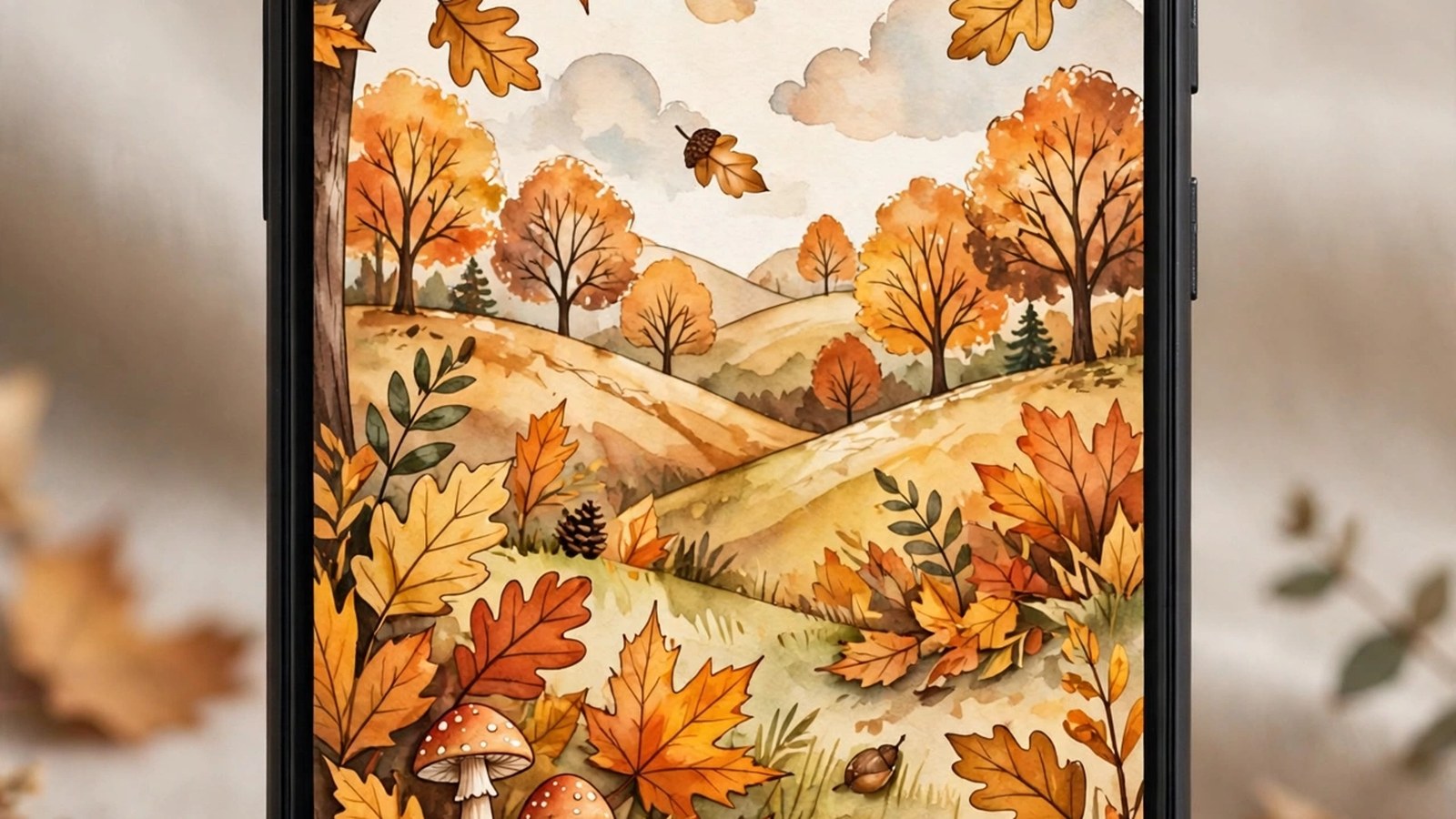
Fall wallpapers are about color and calm. The most popular styles use autumn leaves in orange, gold, and russet, pumpkin patches, misty mornings, cozy knit textures, and woodland paths. Unlike Christmas designs, which are often bright and detailed, fall backgrounds work best when they are a little softer. The colors are rich enough on their own.
Watch the pattern density. Leaves and branches photograph beautifully, but a very busy leaf pattern can fight with your app icons. If your home screen is full, pick a design with a clear sky or a blurred background at the top and the detail lower down. If your lock screen is mostly empty, a full, detailed autumn scene can carry the whole screen, provided the area behind the clock is a single, even tone, such as mist or sky.
Fall is also a natural moment to refresh the whole phone look for the new season: new widgets, a new case, a tidier home screen. Pick the background first, then choose widget colors that sit quietly on top of it. On iPhone, Apple notes that customizing a lock screen lets you add widgets and change how the time is displayed. On Pixel phones, Google places colors, icons, and layout controls inside Wallpaper and style.
Fall is also the longest of the short seasonal windows: a design chosen in late September may still be on the phone at the end of November. Quieter woodland, mist, and leaf designs tend to survive that stretch. If you enjoy swapping, fall works well as two steps: a general autumn design first, then a Halloween design for late October.
Halloween Wallpapers
Halloween wallpapers split into two moods: spooky and cute. Spooky designs use haunted houses, black cats, bats, full moons, jack-o-lanterns, and purple and black color schemes. Cute designs use smiling pumpkins, friendly ghosts, candy colors, and cartoon style illustrations. Both moods rely on strong contrast: a dark background with a glowing pumpkin or a pale moon gives the clock and icons a clear field to sit on.
Because Halloween is a short season, many people treat it as a two week wallpaper rather than a whole month one. That makes it a good moment to try something bolder than usual. A dark background with glowing pumpkins looks striking on a lock screen, and feels calmer at night than a bright white background.
One caution applies to Halloween designs more than to any other season: avoid wallpapers with text, faces, or detailed scenes placed right where the clock sits. A pumpkin face placed dead center at the top will end up half covered by the time, and lettering almost always clashes with the clock text. Look for designs where the subject sits lower, with night sky filling the top.
Pink and Aesthetic Picks
Pink wallpapers are the exception to seasonal swapping, because they stay popular all year. Styles range from soft blush and pastel pink gradients to bolder hot pink patterns, floral designs, marble textures, and dreamy sky scenes. The aesthetic look that dominates Pinterest boards usually means a restrained palette, gentle gradients, and a single subject rather than a collage: a pink sky, a vase of flowers, or a sunset over water.
Pink backgrounds pair well with both light and dark app icons. A pale pink gradient keeps text readable, while a deeper pink can make white icons stand out. The risk with pale pink is washout: at high brightness, white clock text may lose contrast against a very light sky, so test it in the lock screen preview first.
If you like changing wallpapers with the seasons but want a consistent feel, a pink version of each season works well: pink autumn leaves, pink tinted winter skies, pink spring blossom, and a pink sunset for summer. The color becomes the thread that ties the year together. Check any aesthetic wallpaper at full brightness and behind your actual icons before committing, because a soft thumbnail can look washed out once it fills the screen.
Spring and Summer Designs
A full year rotation also needs lighter designs. For spring, blossom and pale floral designs follow the same rules as pink wallpaper: a single subject, a restrained palette, and calm space at the top. For summer, beaches and sunsets over water are common choices. Their main hazard is brightness: a midday beach scene can be almost white in its upper half, washing out white clock text. Sunset versions are usually kinder, with deeper color at the top.
How to Set Wallpapers on iPhone
Apple’s support page for changing the iPhone wallpaper gives the Settings route below. The steps apply in iOS 16 and later, which is the version range Apple’s current page describes.
- Save the image you want to your Photos library first.
- In the Settings app, tap Wallpaper.
- Tap Add New Wallpaper.
- Tap Photos to choose your own photo. Apple also lists Photo Shuffle and categories such as Weather and Astronomy, Emoji, and Color on the same screen.
- Customize the wallpaper further if you want, and check the framing so the main subject sits clear of the clock.
- Tap Add.
- Tap Set as Wallpaper Pair to use the selection on both the home screen and the lock screen. Or tap Customize Home Screen to create a separate home screen wallpaper, including changing its color, using a different photo, or selecting Blur so the apps stand out.
You can also manage wallpapers you have already created from the lock screen. Apple says you touch and hold the lock screen to open your wallpaper gallery, swipe left or right to select a wallpaper you already created, or tap the Add button to add a new one. From that gallery you can link a Focus to a wallpaper, tap Customize below an existing wallpaper to edit it, or swipe up on a wallpaper and tap the trash icon to delete it.
Using Photo Shuffle for an Automatic Change
Apple also documents a Photo Shuffle route. In Settings, tap Wallpaper, tap Add New Wallpaper, and select Photo Shuffle from the top row. Choose one or more categories, such as People, Nature, or Cities, or choose an existing album, then choose a shuffle frequency: On Tap, On Lock, Hourly, or Daily. Tap the Use Album or Use Featured Photos button when done. A seasonal album of your own, holding a small set of fall, Halloween, and Christmas images, is a simple way to use this feature.
How to Set Wallpapers on iPad
Apple’s iPad guide gives the same structure as iPhone.
- Go to the Settings app on your iPad.
- Tap Wallpaper, then tap Add New Wallpaper.
- Tap a button at the top of the wallpaper gallery, for example Photos, Astronomy, or Weather, or choose a wallpaper from one of the featured sets.
- Tap Add.
- Tap Set as Wallpaper Pair to use the wallpaper on both the lock screen and home screen, or tap Customize Home Screen to make further changes, such as changing the color, using a custom photo, or selecting Blur so the apps stand out.
Apple adds a tip for iPad and iPhone alike: you can link a lock screen to a particular Focus, and when you switch to that Focus, your wallpaper switches automatically.
How to Set Wallpapers on Android
Android wording varies more than iPhone wording, because each maker shapes its own menus. The two routes below follow the makers’ own support pages for Google Pixel and Samsung Galaxy. If your phone is from another maker, the labels may differ, so searching Settings for Wallpaper is the reliable fallback.
On Google Pixel Phones
Google’s Pixel Phone Help page gives this route.
- On your phone’s home screen, touch and hold an empty space.
- Tap Wallpaper and style. To use a preset wallpaper or your own photo, tap More wallpapers.
- Tap Change wallpaper. To adjust the lock and home screens separately, select Lock screen or Home screen.
- To use your own image, tap Choose a photo. To use a preset wallpaper, tap a category and then an image.
- If available, select which screen shows the wallpaper.
- Tap Preview, and then tap Apply.
Google also documents a daily wallpaper option on Pixel. Touch and hold an empty space on the home screen, tap Wallpaper and style and then Change wallpaper, choose a category, tap Daily wallpaper at the top right, and tap Ok. Google notes that daily wallpaper does not work with your personal photos or live wallpapers, so it suits preset seasonal categories rather than your own saved images.
On Samsung Galaxy Phones
Samsung’s support page for using your own photos as wallpapers gives this route. Samsung notes that photos must be saved on the device before they can be used, so download an image first if it is stored online or in a cloud service.
- Touch and hold the home screen, and then tap Wallpaper and style.
- Tap Change wallpapers to see the available options, such as Featured and Gallery.
- Tap Gallery to select one of your pictures.
- Find and select your desired picture, and then tap Done.
- When prompted, select Lock screen or Home screen for the new wallpaper. You can select both if desired. Then tap Next.
- Touch and drag your picture to position it, and use your fingers to zoom in and out. Samsung notes that your picture will be cropped to fit the screen, so it is best not to crop the picture beforehand.
- When you are satisfied, tap Done in the top right corner.
Samsung also describes setting a lock screen wallpaper by touching and holding the lock screen itself, entering your security credentials if prompted, tapping Wallpapers in the top left corner, choosing a picture from Gallery, positioning it, and tapping Done. Available screens and settings may vary by model, software version, and country.
A Note on Shortcuts That Were Not Kept
Earlier guides often add two extra shortcuts: setting an iPhone wallpaper from the Photos app through Share, and setting a Pixel wallpaper from Google Photos through a Use as menu. Neither shortcut appears on the Apple Support or Google Pixel Help wallpaper pages opened for this article, so they have not been presented as steps here.
Getting the Fit Right
Most problems with wallpapers are cropping problems. Phone screens are tall and narrow, so a wide landscape image will be cropped at the sides, and a small image will look soft when stretched. Samsung makes the same point from the other direction: a picture set as wallpaper will be cropped to fit the screen. Choose an image made for your phone’s shape, in tall, portrait orientation, and keep the main subject in the middle or lower half of the frame, clear of the clock and widgets at the top.
Preview the lock screen before confirming, and then check the home screen as well, since the same image can look quite different behind app icons. Leave margin around the subject, because a subject that touches the edge will lose part of itself to the crop. For tablets, the shape problem reverses: an iPad screen is wider than it is tall in landscape use, so choose a wide version for a tablet.
Profile Picture Ideas
Seasonal wallpapers and profile pictures go together, and Halloween profile pictures, often shortened to Halloween pfp in searches, are a seasonal favorite. The same rules apply on a smaller scale, with one difference: a profile picture is usually cropped into a circle and shown very small, so a design that works as a wallpaper will not automatically work as an avatar.
For a Halloween profile picture, choose a single clear subject (one pumpkin, one ghost, one cat silhouette) centered in the frame, with plain space around it. Detailed scenes lose their detail at small sizes, and anything near the corners of a square image will be cut off by the circular crop. The same approach works for any seasonal avatar: a single snowflake or ornament for Christmas, a single leaf for fall, a single blossom for spring.
If you change your profile picture for Halloween, keep the original saved somewhere safe. Most people want their usual picture back in November, and re-uploading a saved copy is quicker than recreating one.
A Quick Seasonal Rotation
If you like the idea of rotating wallpapers through the year, a simple pattern works: autumn leaves from late September, a Halloween design for the last two weeks of October, a cozy Christmas scene through December, and a soft pink or winter design for January. After that, lighter spring and summer designs carry you back round to autumn. A manual change four to six times a year is enough for most people.
| Period | Suggested direction | Why it works |
|---|---|---|
| Late September to mid October | General fall design, leaves or woodland | Rich color, calm enough to last for weeks |
| Last two weeks of October | Halloween design, spooky or cute | Bold choice for a short window |
| November | Return to fall, or a quiet winter design | Bridges Halloween and Christmas without a clash |
| December | Christmas design, classic, cozy, or minimal | The longest festive window, so pick a version your icons survive |
| January | Winter scene or soft pink design | Calmer after December, without losing the seasonal feel |
| Spring and summer | Blossom, then sunset or water scenes | Lighter designs, with brightness checked against the clock |
The whole routine takes a few minutes a year, and it keeps a phone feeling fresh without any new apps or purchases. No downloadable wallpaper files are included with this article. Always check the license before reusing or sharing someone else’s design.
Frequently Asked Questions
What are seasonal wallpapers?
Seasonal wallpapers are phone or tablet backgrounds chosen to match a season or occasion, such as leaves in fall, pumpkins at Halloween, snow and lights at Christmas, or blossom in spring. They are ordinary wallpaper images: what makes them seasonal is the subject and the timing, not a special file type.
How do I set a seasonal wallpaper on iPhone?
Save the image to your Photos library, then go to Settings, tap Wallpaper, tap Add New Wallpaper, tap Photos, choose the image, tap Add, and tap Set as Wallpaper Pair, or Customize Home Screen to set the home screen separately. That is the route Apple gives on its support page.
How do I set a seasonal wallpaper on Android?
On a Pixel, touch and hold an empty space on the home screen, tap Wallpaper and style, tap Change wallpaper, choose a photo or a preset image, and tap Preview and then Apply. On a Samsung Galaxy, touch and hold the home screen, tap Wallpaper and style, tap Change wallpapers, tap Gallery, select the picture, tap Done, choose the lock screen, the home screen, or both, tap Next, position the picture, and tap Done. Wording varies by maker, so search Settings for Wallpaper if a label differs.
How do I set a Christmas wallpaper on iPad?
Go to Settings, tap Wallpaper, tap Add New Wallpaper, tap Photos or another gallery choice, select the design, tap Add, and tap Set as Wallpaper Pair or Customize Home Screen. Choose a wide design made for a tablet rather than a tall phone image, and preview it in both orientations.
Why does my wallpaper look cropped or blurry?
Cropping happens because the image shape does not match the screen shape. A wide image on a tall phone screen loses its sides, and Samsung notes that a picture set as wallpaper will be cropped to fit the screen. Blurriness usually means the image is too small and has been stretched. A tall, portrait image made for phones, with the subject in the middle or lower half, prevents most cases of both.
How do I keep the clock and icons readable over a wallpaper?
Keep the top of the image plain, through sky, blur, or a single even tone, place the main subject in the middle or lower half, and avoid text or faces near the top. For the home screen, favor softer, even tones behind rows of icons, and preview both screens before you finish.
Can my wallpaper change automatically?
Partly. On iPhone, Photo Shuffle can rotate a set of photos you choose, on tap, on lock, hourly, or daily, and linking a lock screen to a Focus can switch the wallpaper when that Focus is switched on. On Pixel, Google’s daily wallpaper option rotates preset category images, but Google notes that it does not work with your personal photos. Neither option tracks the calendar season by itself.
What is a Halloween pfp?
Pfp is short for profile picture. A Halloween pfp is a seasonal profile picture with a single Halloween subject, such as a pumpkin, ghost, or cat silhouette, centered with plain space around it so it survives the circular crop at small sizes. Save your normal profile picture before you swap.
What makes a wallpaper look aesthetic?
In the way the term is used for Christmas wallpaper aesthetic and pink wallpaper searches, it usually means a restrained palette, gentle or warm light, and a single subject with a simple composition, rather than a busy collage. That style also works better in practice, because it leaves calmer space behind the clock and icons.
Where can I find seasonal wallpapers, and can I reuse any image I find?
Your phone’s built in wallpaper collections are the simplest starting point, and artists and image libraries offer many more designs. Finding an image does not by itself give you the right to reuse or share it, so check the license for the specific image first. This article includes no downloadable wallpaper files.
Keep reading: Halloween Party Ideas: Food, Crafts, Boo Baskets and Trunk or Treat
Keep reading: Seasonal Moments: Bonfire Night, Valentine’s Day, New Year and Cheltenham
Keep reading: Pumpkin Patch Captions, Outfits and Photo Ideas
Keep reading: Christmas Gift Ideas: Lists, Stocking Fillers and Secret Santa Without the Panic
Sources & references
- Apple Support, "Change your iPhone wallpaper" (support.apple.com/en-us/102638): Settings, Wallpaper, Add New Wallpaper, Photos or Photo Shuffle, Add, Set as Wallpaper Pair or Customize Home Screen; lock screen wallpaper gallery, Customize, Focus linking, and deletion; Photo Shuffle categories, albums, manual selection, and shuffle frequencies (On Tap, On Lock, Hourly, Daily). Opened and read 29 October 2026.
- Apple Support, iPad User Guide, "Change the wallpaper on iPad" (support.apple.com guide for iPad): Settings, Wallpaper, Add New Wallpaper, Photos and other gallery buttons, Add, Set as Wallpaper Pair or Customize Home Screen, and linking a lock screen to a Focus so the wallpaper switches automatically. Opened and read 29 October 2026.
- Google Pixel Phone Help, "Change wallpaper on your Pixel phone" (support.google.com/pixelphone/answer/7289143): touch and hold an empty space on the home screen, Wallpaper and style, Change wallpaper, Choose a photo or a preset category image, Preview and Apply, separate lock and home screen selection, daily wallpaper steps and its exclusion of personal photos and live wallpapers, and home screen style controls. Opened and read 29 October 2026.
- Samsung Support, "Use your photos or videos as wallpapers on your Samsung Galaxy" (samsung.com support): touch and hold the home screen, Wallpaper and style, Change wallpapers, Gallery, Done, lock screen or home screen selection including both, Next, drag and pinch to position, the note that a picture will be cropped to fit the screen, the lock screen route, and the note that photos must be saved on the device first. Opened and read 29 October 2026.
- University of Michigan Flint, "How to Change Your Wallpaper on Your Phone", and Getly, "Free phone wallpapers 2026: sizes for iPhone and Android", as listed in the source package sources.csv: independent guides used by the original package for iPhone and Android setup and for subject placement guidance. They are listed here for provenance only. The device steps in this article follow the Apple, Google, and Samsung support pages above, not these guides.


