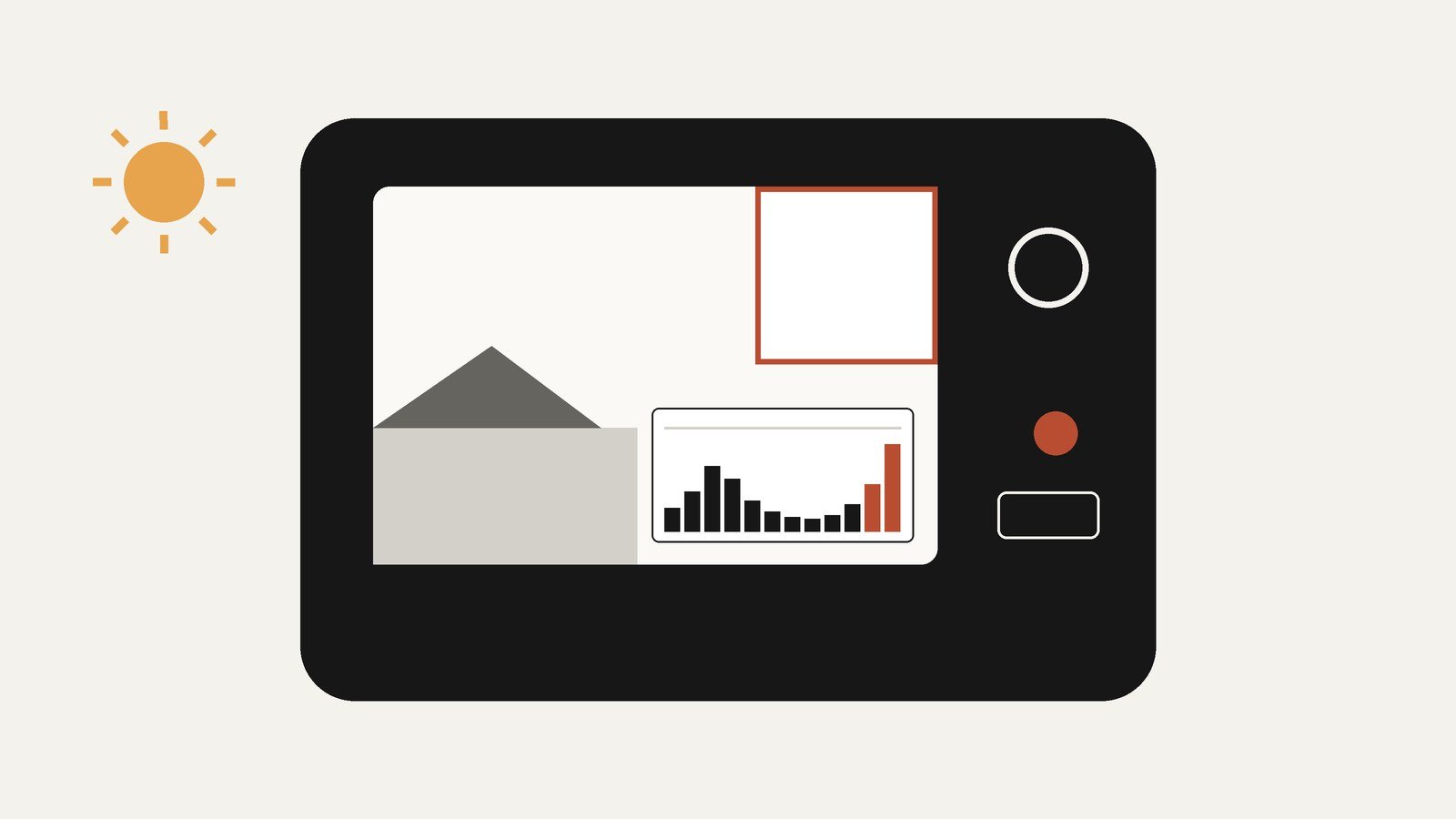
Short answer
- A highlight is "blown" or "clipped" when the sensor recorded it at maximum brightness. If all three color channels are clipped, the area holds no data, and no editor can recover detail that was never captured.
- If one or two channels still hold data, which is common, real recovery is possible. Adobe's documentation notes that detail can be recovered in raw files when one or two channels are clipped.
- Diagnose before you edit: check the histogram (a spike hard against the right edge is the warning sign) and turn on your editor's clipping warnings, which paint clipped highlights red.
- The fix, in order: set overall brightness with Exposure, recover the bright zones with Highlights, reset the white point with Whites, then rebuild contrast with the tone curve. Work locally on skies rather than darkening the whole frame.
- RAW files give you far more room than JPEGs, because the camera discards highlight data when it makes a JPEG. A clipped JPEG highlight is usually final.
- Prevention beats repair: watch the histogram, use negative exposure compensation in bright scenes, and bracket when the light is harsh and the subject is still.
Every photographer has opened a promising shot and found it washed out: a white sky where clouds should be, a face with the shine burned through, a wedding dress with no folds left in it. Some of those photos can be rescued almost completely. Some cannot be rescued at all, because the deciding factor is not the editor you use but what the sensor actually recorded. This guide works through the problem in order: how to tell whether a photo is overexposed, how to judge what is recoverable, the step-by-step fix using the standard controls found in nearly every editor, the special cases of skin tones and phone photos, the honest options when the detail is gone, and the habits that prevent the problem next time.
How to Tell a Photo Is Overexposed
Overexposure means the sensor received more light than it could record in part of the scene. The reliable checks are instruments, not eyeballing a screen whose brightness setting may be lying to you.
The histogram. The histogram graphs how many pixels sit at each brightness level, from black on the left to white on the right. Cambridge in Colour, whose histogram tutorials are a standard reference, explains that you can readily see whether clipping has occurred when the highlights are pushed to the edge of the chart: a column of pixels piled against the right-hand wall means tones have run off the end of the scale. A healthy exposure for a bright scene may approach the right edge, but it should taper before it gets there, except for the deliberate exceptions covered below.
The blinkies. Most cameras offer a playback warning that makes overexposed areas flash. Nikon calls it the Highlights display: as Nikon Support explains, it warns “when the highlight areas of an image are too bright and will appear overexposed and thus void of detail,” and the pure white areas flash on screen. Canon’s equivalent is Highlight alert. Photographers call the flashing areas “blinkies,” and they are the fastest field check there is: if they cover your subject’s face or dress, reshoot with less exposure while you still can.
Clipping warnings in your editor. Raw converters and editors show the same information as an overlay. In Adobe’s Camera Raw and Lightroom, clicking the small triangle icons at the top corners of the histogram turns on clipping warnings: areas clipped in the highlights are painted red, areas clipped in the shadows blue. Work with the highlight warning on throughout the fix below; it is the difference between guessing and knowing when you have pulled the highlights back inside the recorded data.
One caution about the camera’s display. On most cameras, the histogram and blinkies are calculated from the JPEG preview generated for the screen, even when you shoot RAW, and the RAW file often holds a little more highlight data than that preview suggests.
The One Rule: Fully Clipped Means Gone
Everything in this article follows from a single fact about how sensors work. Each pixel site collects light and converts it to a number. Give it more light than it can hold and the number simply stops at the maximum. A cloud at that brightness and the sky behind it, ten times brighter, record as the same value. When neighboring pixels all record the maximum, no differences remain between them, and differences are all that detail is.
Cambridge in Colour states the consequence without softening it: “Detail can never be recovered when a region becomes so overexposed that it becomes solid white. When this occurs the highlights are said to be ‘clipped’ or ‘blown.’” Editing software can darken a white area to gray, which sometimes looks better, but gray is all it can make. It cannot put back the texture of a dress or the shape of a cloud, because those variations were never written into the file. Any tool that appears to restore them is inventing plausible detail, not recovering yours.
One legitimate exception is worth knowing by sight: specular highlights. The glint on water, chrome, jewelry, or the disc of the sun itself is supposed to be featureless white. Cambridge in Colour notes that some clipping is usually acceptable in specular reflections on water or metal, and when the sun is in the frame. Do not wreck a good photo rescuing highlights that were never meant to hold detail.
One Channel or Three: Partial Clipping and Color Shifts
Digital photos are built from three color channels, red, green, and blue, and they do not all clip at once. A bright red flower may saturate the red channel while green and blue still record normally; a blue sky may clip the blue channel first. So the simple question “is it clipped?” has a more useful follow-up: “in how many channels?”
Adobe’s Lightroom documentation makes the practical point: detail can be recovered in raw image files if one or two channels are clipped. The surviving channels still contain the tonal differences that make texture, so pulling the highlights down can reveal real detail: petals, fabric weave, cloud shading. When all three channels are clipped, the same slider only makes uniform gray.
Partial clipping has a visible symptom: strange colors in bright areas. Cambridge in Colour’s second histogram tutorial explains that regions where individual color channels are clipped lose all texture contributed by that color, though they may keep luminance texture from the channels still recording. If red clips in a sunset while green and blue do not, the brightest oranges collapse toward yellow or white and lose their gradation. When you see good texture but wrong color in the bright zones, suspect single-channel clipping, and expect the fix to restore tone more faithfully than hue.
This is why editors offer per-channel histograms. The combined luminance histogram can look safe while one channel is already hard against the wall. Before a rescue edit, glance at the channels: they tell you which colors are in trouble and how honest the recovery can be.
RAW vs JPEG: How Much Room You Actually Have
The same overexposed scene produces two very different rescue prospects depending on the file format, because the formats keep different amounts of what the sensor saw.
A RAW file stores the sensor’s data before the camera finishes interpreting it, typically at 12 or 14 bits per channel, thousands of brightness steps per channel. Its recorded range often extends a little beyond the point where the camera’s own preview already looks blown, so highlights that appeared clipped on screen can still hold recoverable gradation.
A JPEG is the camera’s finished rendering. The camera applies a tone curve, white balance, sharpening, and noise reduction, converts the result to 8 bits per channel, 256 steps, and throws away everything outside the rendering, including highlight data above the white point it chose. If a JPEG highlight is at maximum white in all channels, there is nothing underneath it to pull down. The editing moves in the next section still work on JPEGs and can improve a mildly bright one, but the ceiling is much lower and arrives much sooner. The working rule is blunt: shoot RAW whenever the light is difficult and the photo matters.
Step by Step: Fixing an Overexposed Photo
The controls below are described by their standard names, Exposure, Highlights, Whites, and the tone curve, because nearly every serious editor, from Adobe Camera Raw and Lightroom to camera makers’ and open-source raw converters, implements the same concepts under the same or similar labels. Adobe’s documentation defines them this way: Exposure controls the overall brightness; Highlights controls the brightness of the lighter areas, and moving it left darkens highlights and recovers detail; Whites sets the white point. The order matters. Work from the whole frame down to the details.
Step 1: Turn on the clipping warnings. Enable the highlight clipping display (in Adobe tools, the triangle at the histogram’s upper right) so clipped areas show in red overlay. Judge every later step against it: shrink it where the subject matters, not everywhere.
Step 2: Set overall brightness with Exposure. If the whole frame is too bright, lower Exposure until the midtones look plausible. Keep the move modest: Exposure shifts everything, including shadows that were fine, so use it for the general level, not to chase the highlights. That is the next slider’s job.
Step 3: Pull Highlights down. Drag Highlights to the left. This control aims at the brightest tones specifically, and Adobe’s manual describes the leftward move as the way “to darken highlights and recover ‘blown out’ highlight details.” On a RAW file with partial clipping, this is the moment texture reappears in skies, foreheads, and white clothing, provided at least one channel survived. Watch the red overlay shrink. If an area stays red however far you push, it is fully clipped.
Step 4: Reset the white point with Whites. The Whites control adjusts white clipping directly, per Adobe’s manual: drag left to reduce clipping in the highlights. Lowering Whites pulls the brightest values back under the ceiling and often removes the last of the red overlay around light sources and sky edges. Check afterward that whites which should sparkle still read as bright.
Step 5: Rebuild contrast. Highlight recovery tends to leave a photo dull in the top half, because you have compressed the brightest tones together. Rebuild shape with the tone curve: anchor the middle and pull the highlight end down, steepening the upper midtones while keeping the recovered detail. This step is cosmetic, not recovery.
Step 6: Work locally on the stubborn area. If only the sky is blown and the foreground is right, do not darken the foreground to save the sky. Apply a graduated filter or brush mask over the bright region and make the Highlights and Exposure reductions inside the mask only. Local correction answers the most common real-world case: one bright zone in an otherwise good exposure.
Step 7: Check the channels and the result. Toggle the clipping warning off and judge the photo as a picture, then on again to confirm what remains clipped is specular or unimportant. If colors in the bright areas still look wrong, the per-channel histograms will show which channel clipped, and slightly reducing saturation in just those highlights makes the shift less obvious.
Fixing Overexposed Skin Tones
Portraits deserve their own section because skin is where overexposure does the most damage, and where readers most often make it worse with a global fix. Skin is red-dominant, so under warm light the red channel is usually the first to clip. The result is a forehead or cheek gone pale, waxy, and flat, sometimes with a yellow or chalky cast where the red information collapsed: texture and color fail in the same patch.
Start by checking whether the patch is clipped in all channels or only in red. If only red has clipped, recovery is real: the green and blue channels still hold the skin’s tonal structure, and a masked Highlights reduction over the face can bring back a surprising amount of modeling. Use a soft brush mask confined to the skin rather than the global sliders, which would dull the whole scene to fix one cheek. Afterward, the area often needs a small saturation adjustment, because partial clipping leaves the color thinner than the tone.
If all three channels are clipped, accept the limit. Darkening the patch to light gray looks stranger than leaving it bright, and sharpening controls applied to it only emphasize the absence of texture, since there is nothing for them to sharpen. Use the salvage options in the next sections, and for the next shoot, expose for the skin: spot-meter the face or dial in negative compensation.
Overexposed Phone Photos
Phones complicate the picture in two ways. First, a phone is already an editor: it typically merges multiple exposures computationally and applies heavy processing before showing you a photo, which rescues many scenes automatically but also means the file you receive, usually JPEG or HEIC, has already spent its recovery headroom. Highlights that survive that processing as pure white are, with rare exceptions, fully clipped in all channels. The fix available is the same Highlights and Exposure reduction as above, applied gently, with low expectations.
Second, the capture controls are simpler but effective. On most phone cameras you can tap and hold to lock focus and exposure on your subject, then drag the brightness control downward before taking the shot. In bright, contrasty light that small drag protects the highlights, and shadow recovery later is far more forgiving than rebuilding white areas. If your phone offers a RAW mode, the camera rule applies: more data kept, more highlight room, bigger files.
When You Cannot Fix It: Honest Salvage Options
Sometimes the histogram tells you the truth and the truth is final. A photo whose subject’s highlights are clipped in all three channels cannot be fixed, only managed. The legitimate options:
Let it be high-key. A bright, airy image with white backgrounds and gentle contrast is an established style. If the subject retains detail and only the surroundings are blown, leaning into the brightness makes the overexposure look chosen.
Convert to black and white. Monochrome removes the color shifts that partial clipping causes, and a strong composition can survive white highlights in grayscale better than in color. It does not restore detail; it changes the terms on which the photo is judged.
Crop. If the blown area sits at an edge, a bright sky band above a good landscape, reframing may simply remove the failure.
Be wary of tools that promise restoration. Generative and “AI enhancement” tools can fill a blown sky with plausible clouds. The clouds are synthesized, not recovered; they were not in front of your lens. For a personal snapshot that trade may be acceptable, but presenting the result as a faithful record, in journalism, real estate, insurance, or evidence, would be a misrepresentation. And sometimes the correct move is the oldest one: reshoot, if the subject still exists, with the lessons of the next section applied.
Prevention: Metering, Compensation, Bracketing, and the ETTR Debate
Watch the histogram and the blinkies while shooting. A two-second review after the first frame tells you what the meter could not. Nikon’s advice for its Highlights display runs exactly this way: where the warning flashes on a white subject whose detail you need, such as a wedding dress, reduce the exposure slightly. Darker areas can be brightened later; clipped highlights cannot be unclipped.
Understand what your meter is doing. A camera meter measures reflected light and aims to render the metered area as a midtone. In a scene mixing deep shade with bright sun, one exposure cannot cover both: something must give, and what gives should never be your subject’s highlights. The metering modes tell the camera what matters. Evaluative or matrix metering weighs the whole frame, the right default for balanced scenes. Center-weighted metering judges mainly the middle, a traditional choice for portraits. Spot metering reads a small area only, so you can meter a face or a dress and protect exactly that.
Use exposure compensation deliberately. In bright scenes, negative compensation, typically a third of a stop to a full stop, is cheap insurance for highlights, and Canon’s and Nikon’s guidance amounts to the same advice: when the warning covers detail you need, reduce exposure and shoot again. Lifting shadows later adds noise but rarely ruins a photo; clipped highlights are final. Cambridge in Colour’s histogram tutorial makes the underlying point: underexposure is usually more forgiving than overexposure.
Bracket when the scene exceeds the sensor. If the subject is static and the contrast extreme, take the same frame at several exposures, the metered value plus and minus one or two stops. One will hold the highlights, and you can choose in editing or merge them.
The expose-to-the-right debate, stated fairly. Exposing to the right (ETTR) means deliberately making the brightest exposure you can without clipping important highlights, then darkening the file in editing. Advocates argue, correctly, that brighter exposures capture more signal relative to noise, so a right-exposed file darkened in post is cleaner in the shadows than a left-exposed file brightened in post. Critics reply, also correctly, that the technique walks the edge of clipping, that judging “important” highlights on a small screen is error-prone, and that with modern sensors at low ISO the noise advantage is often too small to see. The balanced conclusion: the principle is sound, the dogma optional. The check is not optional, because the histogram and the blinkies are what tell you in the field whether the highlights survived.
Rescue Triage Table
| Symptom | Recoverable? | Best move |
|---|---|---|
| Sky is blank white, foreground looks fine | Partly: tone returns only where a channel survived | Mask the sky, pull Highlights and Whites down inside the mask; if it stays featureless it is fully clipped, so crop the sky down |
| Whole frame washed out and pale | Usually yes, if shot in RAW and clipping is mild | Lower Exposure, then Highlights, then Whites; rebuild contrast with the tone curve |
| White clothing has lost its folds | Texture returns only where data exists | Reduce Highlights locally on the garment; add clarity only where detail is present |
| Forehead and cheeks shiny, pale, flat | Partially: often only the red channel has clipped | Mask the face, reduce Highlights and Whites gently, then fix the thinned color with a small local saturation adjustment |
| Colors in bright areas look wrong | Tone yes; original color only approximately | Reduce Highlights; check the per-channel histogram for the clipped channel; slightly desaturate the affected highlights |
| Sun, glints on water, chrome pure white | Nothing to recover, and nothing needs recovering | Leave specular highlights clipped; they read as sparkle, not damage |
| Phone JPEG with white highlights | Very little: the data was discarded when the JPEG was made | Gentle Highlights reduction to soften the transition; consider black and white or a high-key treatment |
| Large areas at maximum white in every channel | No: no editor can restore unrecorded detail | Reshoot if possible; otherwise crop, go high-key, or convert to black and white; treat generative fill as invention, not repair |
Frequently Asked Questions
Can a completely overexposed photo be fixed?
If “completely” means the important highlights are clipped in all three color channels, no. The sensor stopped recording differences in those areas, so the detail does not exist in the file. Software can darken the white to gray or synthesize plausible replacements, but neither recovers your actual subject. If the clipping is milder, or confined to one or two channels, a RAW file usually holds real detail.
Which should I move first, Exposure or Highlights?
Exposure, briefly, to place the overall brightness, then Highlights for the bright zones. Adobe defines Exposure as controlling the overall brightness of the image and Highlights as controlling the brightness of the lighter areas. Using Exposure alone to tame highlights drags the whole photo, shadows included, down with them. Whites comes third, to reset the white point.
How much overexposure can a RAW file survive?
There is no universal number of stops, because it depends on the sensor and, more importantly, on how many channels have clipped. Adobe’s documentation gives the operative rule instead of a number: detail can be recovered in raw files when one or two channels are clipped. Once all three are clipped, no amount of headroom helps. Verify with the clipping warnings, and never plan on the grace.
Is it safer to underexpose slightly on purpose?
Within limits, yes. Cambridge in Colour’s histogram tutorial concludes that underexposure is usually more forgiving than overexposure: shadow detail can be lifted in editing at the cost of some noise, while clipped highlight detail is gone entirely. Heavy underexposure just trades a highlight problem for a noise problem. A small bias, a third to two thirds of a stop in bright scenes, verified on the histogram, is the practical version of the idea.
Conclusion
Fixing an overexposed photo is really two skills. The first is judgment: reading the histogram, the clipping warnings, and the channels to know what the file still holds, because the boundary between recoverable and gone is a property of the data. The second is order: Exposure for the whole frame, Highlights for the bright zones, Whites for the white point, the curve for contrast, and local tools for the one stubborn sky. Everything else supports those two skills: RAW files to give them something to work with, skin-tone and phone tactics for the cases readers hit most, honest salvage options, and the exposure habits that make rescue unnecessary next time.
Keep reading: Cool Things to Draw: Ideas by Difficulty, Theme and Mood
Sources & references
- Cambridge in Colour (cambridgeincolour.com), "Understanding Digital Camera Histograms: Tones and Contrast": clipping is visible when highlights are pushed to the edge of the histogram; "Detail can never be recovered when a region becomes so overexposed that it becomes solid white. When this occurs the highlights are said to be 'clipped' or 'blown'"; some clipping is acceptable in specular reflections and when the sun is in the frame; underexposure is usually more forgiving than overexposure.
- Cambridge in Colour (cambridgeincolour.com), "Understanding Digital Camera Histograms: Luminosity and Color": individual color channels can clip independently; regions where a channel is clipped lose texture from that color but may retain luminance texture if the other channels have not clipped.
- Adobe Photoshop Lightroom documentation (Adobe): Highlights "adjusts bright image areas; drag to the left to darken highlights and recover 'blown out' highlight details"; Whites "adjusts white clipping; drag to the left to reduce clipping in highlights"; Recovery documentation noting Lightroom can recover detail in raw files if one or two channels are clipped.
- Adobe Help (helpx.adobe.com), "How to adjust Light in an image": Exposure controls the overall brightness of the image; Highlights controls the brightness of the lighter areas, and moving it left darkens highlights and recovers details; Whites sets the white point, and moving it right makes more colors appear completely white.
- Nikon Support (nikonimgsupport.com), "Why do some image areas flash on the camera monitor during playback?": the Highlights warning flashes pure white areas that are too bright and void of detail; Nikon's advice is to reduce exposure slightly to retain detail in areas such as a wedding dress, and brighten the darker areas later in editing.
- Canon camera manuals (Highlight alert): the playback screen can display overexposed highlight areas as a blinking warning; to obtain more detailed gradation in the blinking areas, set exposure compensation to a negative amount and shoot again.